How-to guide
On this page
Connect a provider
Nawa talks to a language model through a setup: a card on the LLM tab of Settings. One setup is the default for new chats. Existing chats keep their saved Main and Coder choices.
Open Settings (the gear at the bottom of the left pane, Edit → Settings… in the title bar, or Ctrl+,) and choose LLM. The LLM setups list shows one card per provider and one per local server. Click a card's name to open or close its form without changing the active setup. Only the circle at a card's left selects it for use. You can configure and test a setup before selecting it.
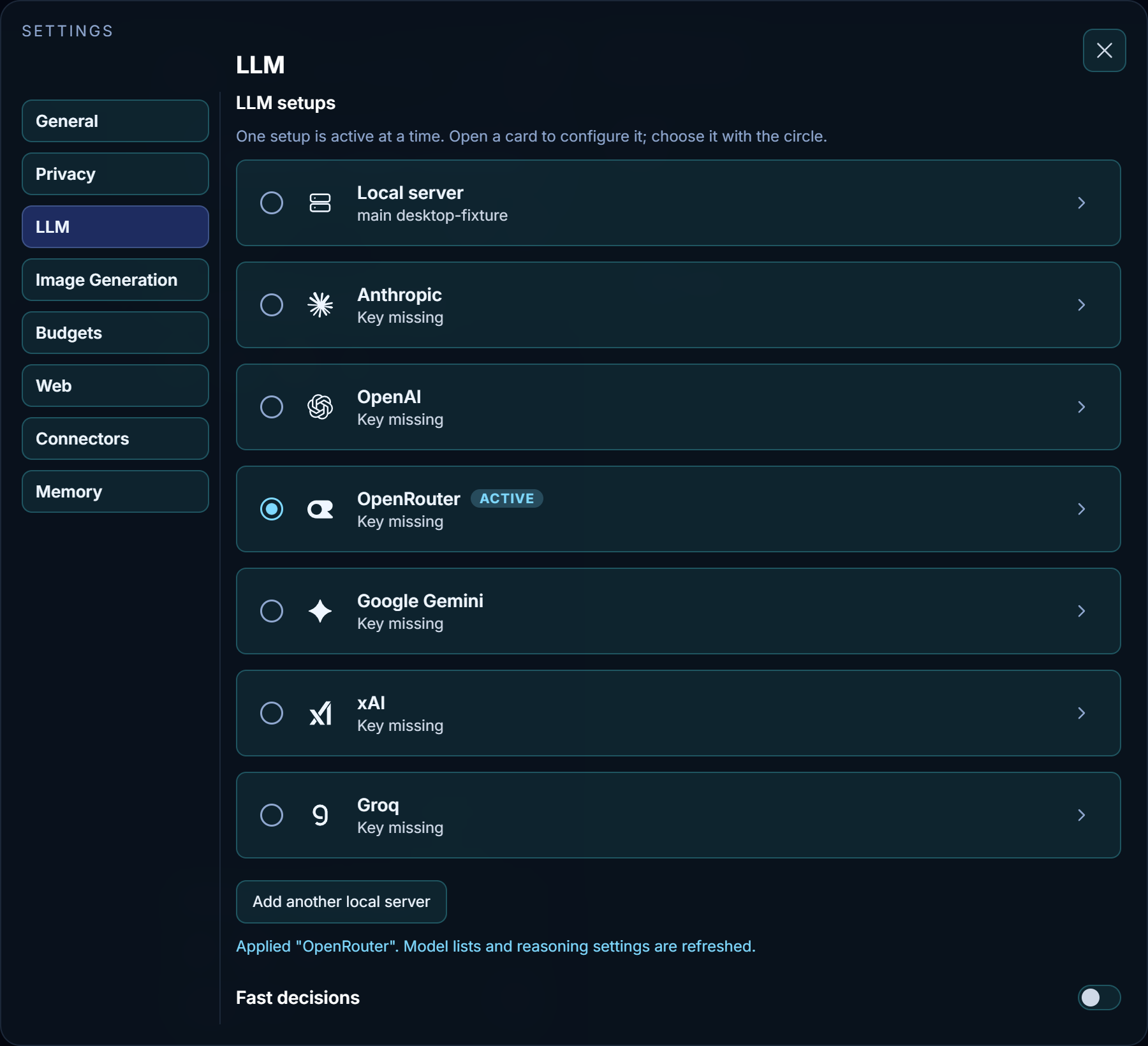
A cloud provider
The cards Anthropic, OpenAI, OpenRouter, Google Gemini, xAI and Groq each hold a key, a connection test, one model, its temperature, and its reasoning level. That one model serves everything the setup does, and the card says so.
- Click the provider's name to open its card. Its status reads Key missing until a key is saved.
- Paste the API key issued by the provider named on the card. For example, the OpenRouter card needs an OpenRouter key, even when you choose a DeepSeek model. Nawa adds the authentication header automatically; enter only the key. The key is stored in Nawa's encrypted account storage; the page keeps only a reference to it, rather than returning the saved key. Entering a new key still sends it to the settings endpoint, and the server uses it to authenticate with the provider.
- Press Connect beside the API key. Nawa saves the current connection and loads the model list. OpenRouter also checks the key through its authenticated key endpoint, because its model list is public. A refused key shows the provider's error. After you choose a model, Nawa detects its context window and capabilities.
- Pick the model from the row below; Temperature is beside it. Long model lists have a search box at the top of the dropdown; type part of the name. Changing the key clears the list until that connection is successfully tested again.
- Set the temperature and the reasoning level if the model offers one. The dropdown opens past the card's edge when the list is long.
The card's status now names its chosen model. Select the card's circle when you want to use that setup. Beside each model, Main and Coder show the model's context size and keep their own Compact at (%), including when both use this same model; blank uses the displayed default, initially 80%.
A hosted OpenAI-compatible API
The Local server form also accepts hosted OpenAI-compatible APIs. It does not require you to install a local server or a router.
For a key issued directly by DeepSeek:
- Click Add another local server and name the setup DeepSeek.
- Under Main, choose LM Studio / OpenAI-compatible server, set Server URL to
https://api.deepseek.com, and enter your DeepSeek key. - Press Connect, then choose a model returned by DeepSeek.
- Leave Coder on Use Main chat's model to share the connection. Select the setup's circle and start a new chat.
An OpenRouter key and a DeepSeek key belong to different services. Use the address and key from the same provider. Provider charges and model availability are managed by that provider. See DeepSeek's API setup guide for its current endpoint and model details.
A local server
The Local server card holds a name and the two roles Nawa uses as rows:
- Main carries the connection: the server type (vLLM, or LM Studio and any OpenAI-compatible server), the server URL, an optional key, temperature, and the connection test. It answers chats and orchestrates tools.
- Coding defaults to Use Main chat's model. Give it its own model when your server hosts several, such as a larger model for coding.
Chat titles, context notes and the screening of web and tool content use the Main model, with its reasoning turned off.
- Click Local server to open the card, and give it a name that tells the servers apart.
- Enter the server URL, for example
http://127.0.0.1:8000/v1, and a key if the server requires one. - Press Connect beside the API key. A local server that does not require a key can still pass this test. Nawa fetches the model list; choose the main model from the row below, then a coding model or leave Coding on the Main model. Changing the URL or key clears the displayed models until the new connection is successfully tested.
Add another local server creates and opens a second card for configuration without changing the active setup; Remove this server removes the card you are on, as long as one local card remains. Selecting a card's circle changes the default Main and Coder setup for new chats. Existing chats with saved selections keep their own setup; use their composer model/reasoning menu to change them. Opening a card's form leaves the active setup unchanged.
An image server (optional)
Open Settings → Image Generation. Its provider cards support OpenRouter, OpenAI, Together AI, Google Gemini, fal.ai, Replicate, Black Forest Labs, Ideogram, Stability AI, Recraft, and Custom / vLLM Fleet. Changing the image connection does not change the chat model. Existing Fleet servers and their selected model are preserved.
- Open a provider card and enter its API key. For your own server, enter its URL and a key only if required.
- Press Connect beside the API key to load model suggestions. Choose a model from the dropdown, or use Enter a custom model ID…. OpenRouter and fal.ai have public catalogues: loading one does not establish that the key can generate images.
- Set optional defaults supported by that provider. Request size, aspect ratio and resolution in your prompt. Generate test image sends a sample prompt, displays the result, and may incur a provider charge. Testing leaves the active image connection and chat setup unchanged.
- Select the connection with its circle and enable the switch at the top. Add connection keeps additional accounts or servers saved. Removing a connection leaves other cards unchanged.
See Image Generation settings for provider-specific generation and editing support.
Ask normally, for example, "Create an image of a blue paper boat on calm water." Or type @image (available in the mention menu) to explicitly request image generation. The model can specify size, steps, seed, image count, format and a transparent background when the server supports them. The generated files are saved under images/ in the chat's workspace and displayed in the answer.
To edit, follow up with a request such as "Make the boat red and keep everything else the same." Nawa sends the referenced image to the editing endpoint rather than recreating it from a description. You can also attach an image or combine several references. Each edit saves a new file, preserving the originals. Edits use the server's reference aspect-ratio default unless a size is requested. Images appear as smaller previews in answers; click one to enlarge it.
Turning the section off removes the image tool from new turns without deleting saved servers. If you explicitly request @image while it is off, Nawa can inspect that setting and explain what needs enabling. Plan mode does not create or edit images.
A decision model (optional)
Below the setups, Fast decisions holds an optional decision model that answers typed questions. Main and Coder can ask general decision questions, generated apps can use it through Nawa, and discovery tools can rank search results, skills, or plugin catalogue entries. Browser actions use the main model directly, regardless of this setting.
Two cards are offered, chosen with their circles like the setups:
- Jev by TypeSafe — a key of its own, or Through OpenRouter using the key saved on the OpenRouter card.
- Laya — a server URL (the default is a local fleet at
http://127.0.0.1:8080) and a key only if that server asks for one.
Open a card by its name and press its Connect; its status turns to Ready · laya (or the model Jev reports). Select its circle to use that connection, then switch the section on with the switch in its heading. Opening or testing a card leaves the selection unchanged. A card can be tested while the switch is off — its status then says Off · server saved — but nothing consults it until the switch is on.
What the decision model contributes, and what it does not, is described in Decisions beside the LLM and in the settings reference.
Check which setup is active
The default card is marked Active. The composer's model and reasoning menu shows the Main and Coder choices for the open chat. Selecting a different default in Settings affects new chats; use an existing chat's composer menu to change that chat. A running turn keeps the choices captured at its start. Opening another card only shows its settings.