Reference
On this page
General
The General tab is where Settings opens. From top to bottom it has Application updates, Appearance and responses, Permissions, Getting started and, in the website edition, Remote access. This documentation and bug reports are on the Help menu instead: see Report a bug.
Appearance and responses
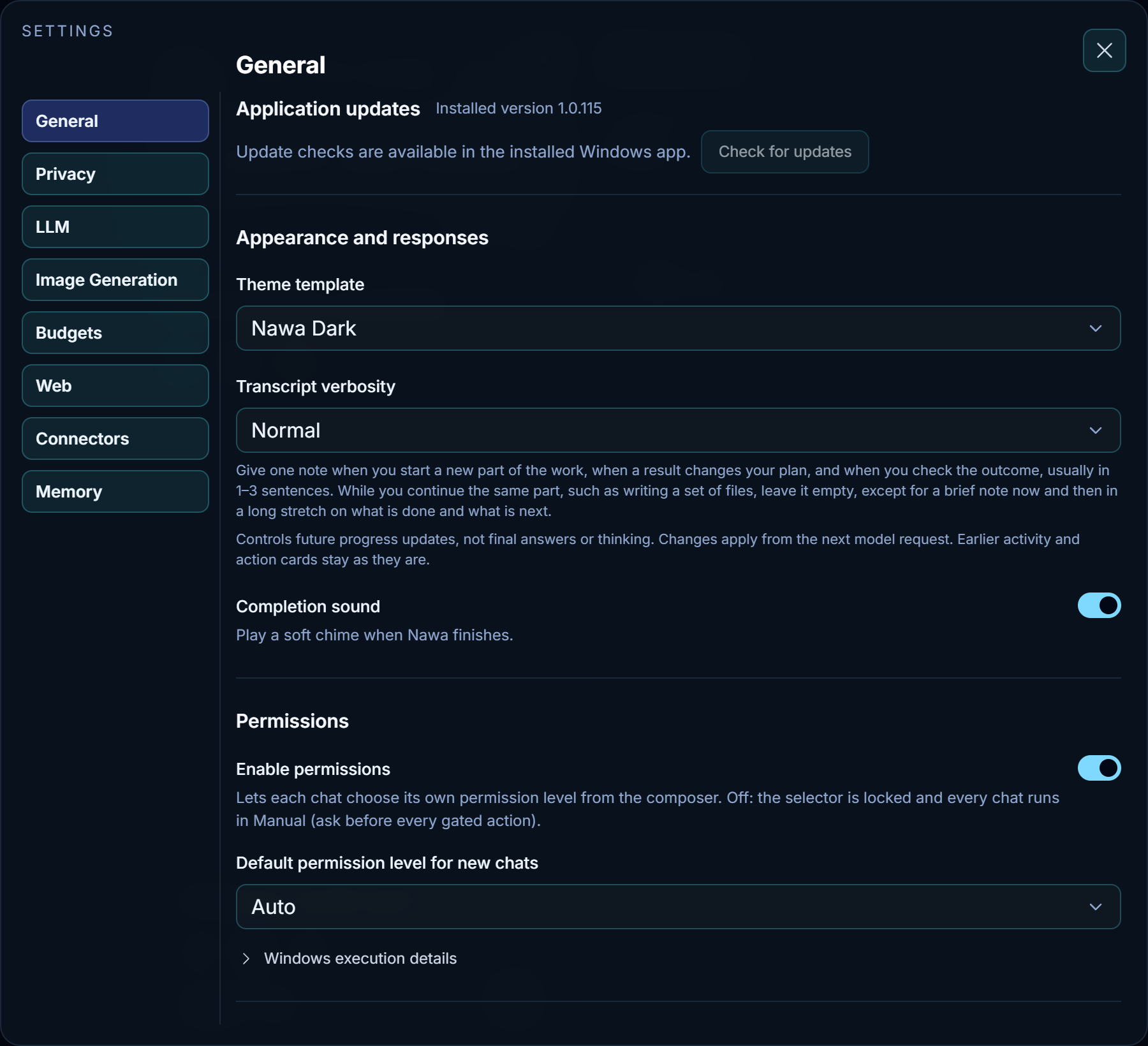
- Theme template
- The look of the whole app: colors, background, fonts, borders, shadows and surfaces. Nawa ships ten templates: Nawa Dark, Nawa Dark Heart, Deep Indigo, Quiet Slate, Emerald Parchment, Nawa Light, Aurora Glass, Neo-Brutalist, Swiss Editorial and Phosphor Terminal. New installations select Nawa Dark; existing profiles retain their saved theme. A new template applies at once.
- Transcript verbosity
-
How much Nawa says about its progress while it works. The line under the list quotes the exact instruction each level gives the model:
- Summary — one short sentence at major milestones, changes of approach or blockers, and silence otherwise.
- Normal — a note when a new part of the work starts, when a result changes the plan and when the outcome is checked, usually one to three sentences. Steps that continue the same part stay quiet, with a brief note now and then in a long stretch.
- Verbose — each useful discovery, correction and verification result, with the supporting details.
It changes progress updates only, never final answers or the model's thinking. It takes effect from the next model request; updates and action cards already shown stay as they are.
- Completion sound
- Plays a soft chime when Nawa finishes a reply. When it is off, Nawa does not touch the audio device at all.
Permissions
These controls remain in Settings → General.
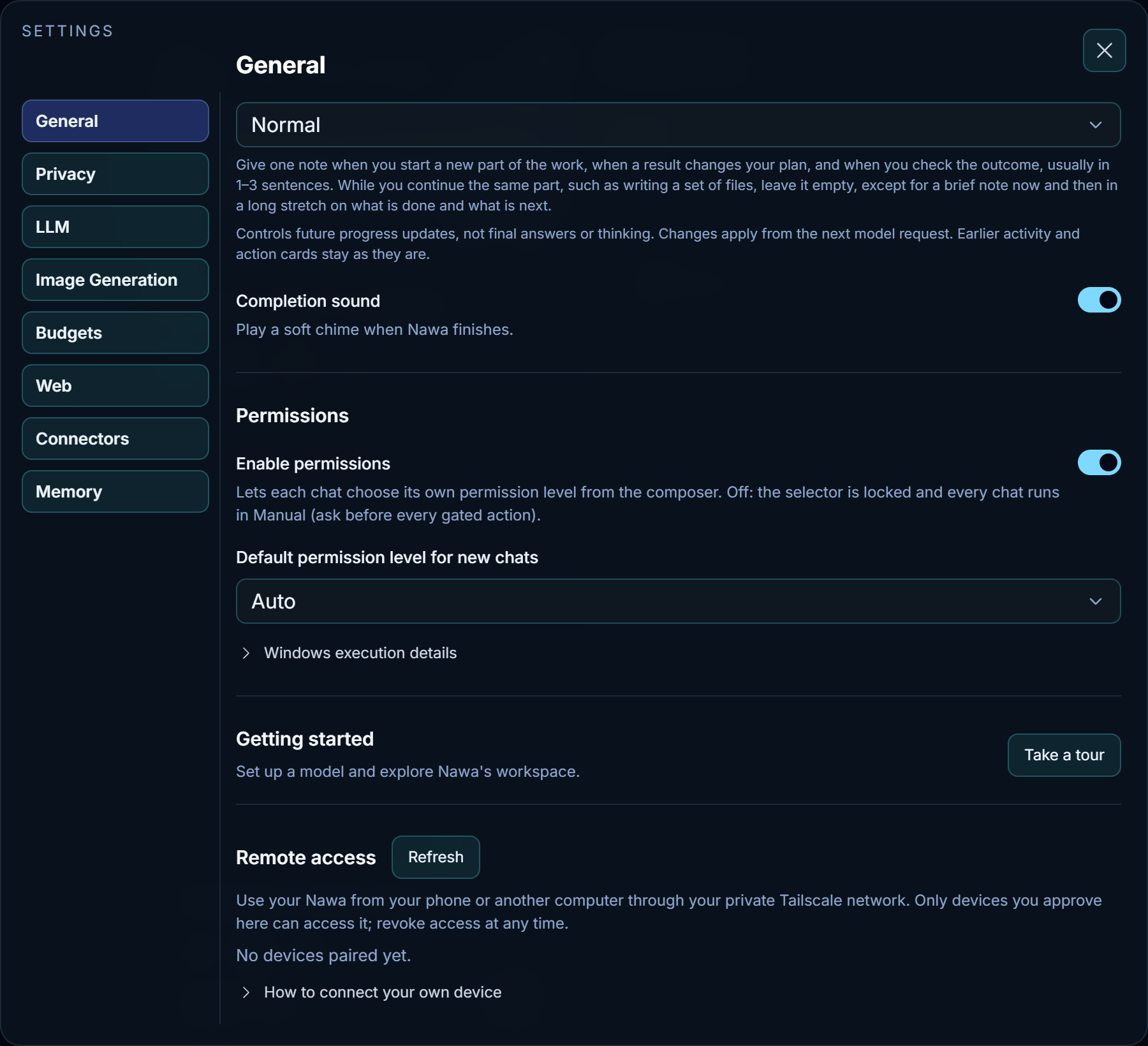
- Enable permissions
- Lets each chat choose its own permission level from the permission control in the composer. When it is off, that control is locked and every chat runs in Manual: Nawa asks before every gated action.
- Default permission level for new chats
-
The level a new chat starts with. It changes new chats only; the chat that is open keeps its own level. The levels:
Level In short Manual Asks before each gated action Accept edits Work inside the chat's workspace runs; shell commands and imports ask Plan Read-only: research and present a plan; gated actions are refused Auto Runs on its own and asks only for risky actions (the shipped default) Bypass permissions No prompts, connected services included; a connected-service tool set to Blocked never runs Permissions explains each level and the cards that ask you.
- Windows execution details
- Open it to read how commands run on Windows. They run at low integrity, without administrator setup. The low-integrity folders they can write to are shared, not separated per chat. Network limits are cooperative, not a firewall. Permission levels decide what asks you; they do not change this boundary. See Permissions and the sandbox.
Privacy
Open Settings → Privacy for location and optional usage reporting.
- Location
-
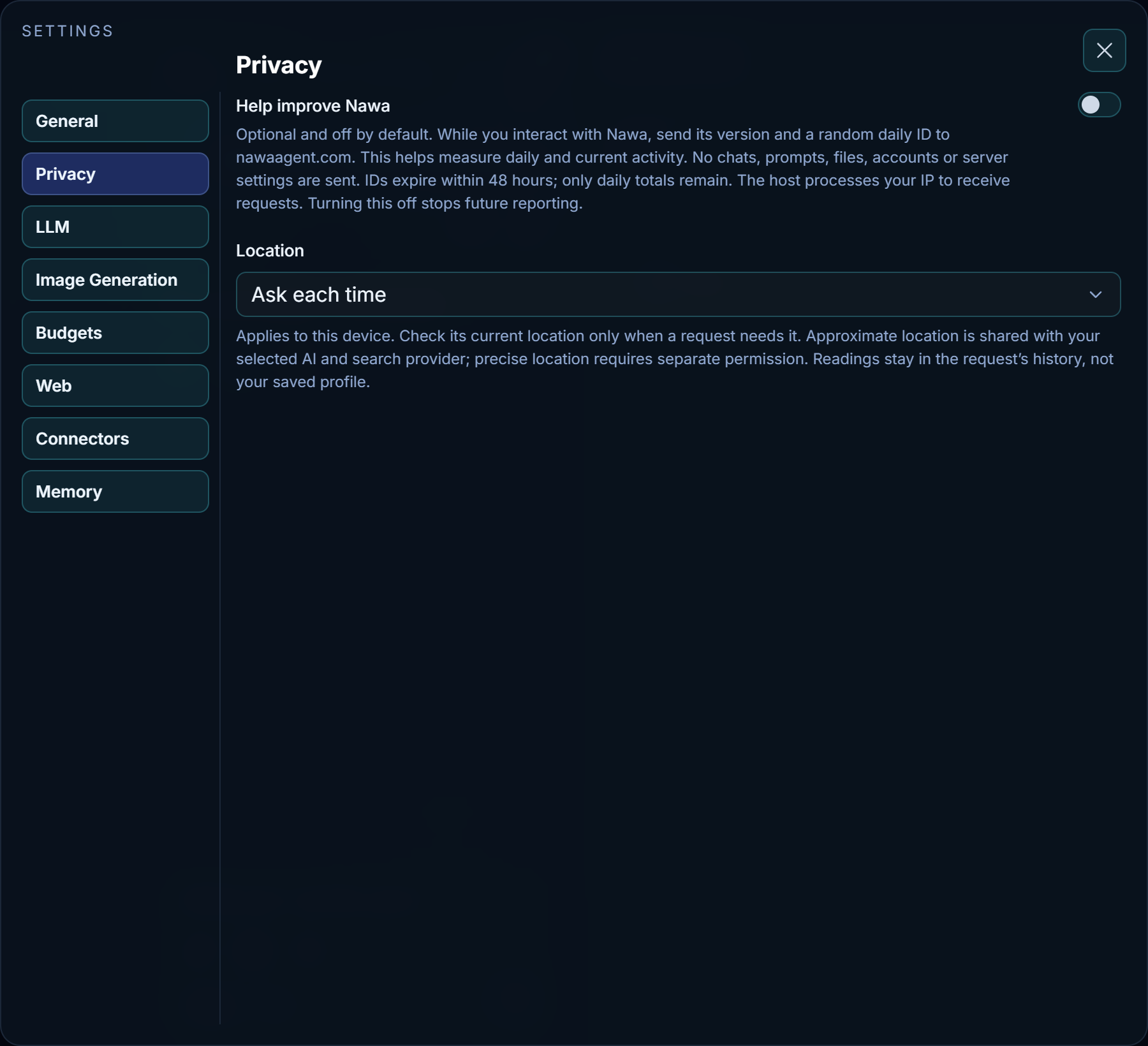
Whether Nawa may read this device's location when a request needs it, such as "restaurants near me":
- Ask each time — Nawa asks before each reading.
- Allow when needed — Nawa reads it without asking, only when a request needs it.
- Off — Nawa never reads it.
This choice belongs to this device, not your account. An approximate location is shared with your AI and search provider; a precise location needs its own permission. A reading stays in that request's history and is not saved to your profile. See Explorer and location.
- Help improve Nawa
- Optional desktop reporting, off by default. When enabled on this installation, Nawa sends its version, the UTC day and a random daily ID to
nawaagent.comwhile you interact with its focused window, at most once every five minutes. This measures participating daily and current activity. Chats, prompts, files, accounts and server settings are excluded. Daily identifiers expire within 48 hours under scheduled server cleanup; permanent history contains aggregate counts. The website host processes your connection IP. Turning this off cancels pending reporting, removes the local daily ID and stops future reports; it does not remove already aggregated totals. Updates and normal use work with reporting disabled.
Getting started
- Take a tour
- Replays the guided tour. It opens the model setup in Settings, then highlights the workspace controls where you use them. Skip or dismiss it at any time. New installations without a configured model or previous conversation start the tour automatically.
Application updates and remote access
- Application updates
-
At the top of General, this compact row shows the installed version. The website edition checks for a new version automatically every six hours; Check for updates checks now. An update downloads in the background while you keep working, with its progress shown here and at the top of the window; Install starts without an extra confirmation, waiting for active work to finish if necessary, then runs the installer and relaunches Nawa with your settings, chats and automations intact. If a check finds nothing but you expect an update, use Check Again after a minute. The screenshot comes from a test copy, which cannot update itself; the Windows app shows its real version and state. See Install Nawa.
The Microsoft Store edition instead displays a notice to install a newer Store-edition installer. It does not use website updates or restore remote access through them.
- Remote access
-
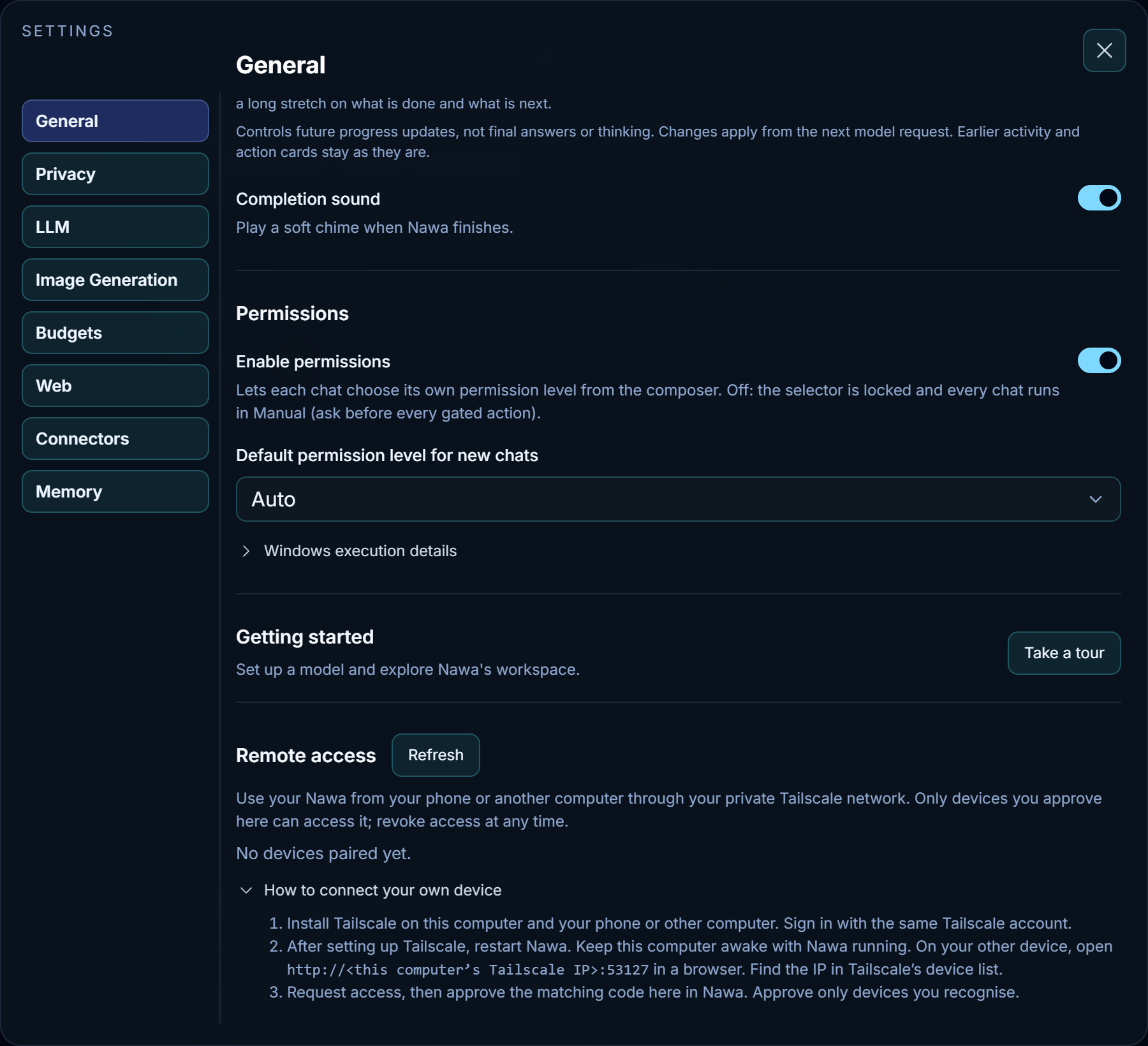
Available in the website edition. The Microsoft Store edition supports local use only and does not offer this section or require Tailscale. In the website edition, use your Nawa on this computer from your own phone or another computer through your private Tailscale network. Each device must be approved here before it can access Nawa. The list shows waiting requests, each with Approve and Deny, and paired devices, each with Revoke; Refresh reloads the list. Revoking a device does not change your model or service keys. This section appears only in Nawa on this computer, never to a remote device.
Open How to connect your own device for the setup steps:
- Install Tailscale on this computer and your other device, and sign in with the same Tailscale account.
- After setting up Tailscale, restart Nawa. Keep this computer awake with Nawa running. Find its IP in Tailscale's device list, then open the address shown in Nawa's setup steps from a browser on the other device. Nawa shows the port used by this installation; it is not necessarily the same on every computer.
- Request access, then approve the matching confirmation code in this section on the host computer. Only approve devices you recognise. The remote browser can then use Nawa; this is not a Windows Remote Desktop connection.
Access depends on your Tailscale network permissions as well as Nawa's approval. Keep a personal network private; sharing it with someone does not automatically approve their device in Nawa. You can use Nawa normally without setting up Tailscale.
A browser on this computer cannot pair, whichever of this computer's addresses it uses, its Tailscale address included: its request is refused with the address it came from. Any program on this computer connects from those same addresses, so a pairing there would not tell the browser from a program replaying its sign-in. A device paired from this computer before this rule stays in the list until you revoke it, but it no longer signs in. On this computer, use the Nawa window.